The Editor and Importing Data
The editor
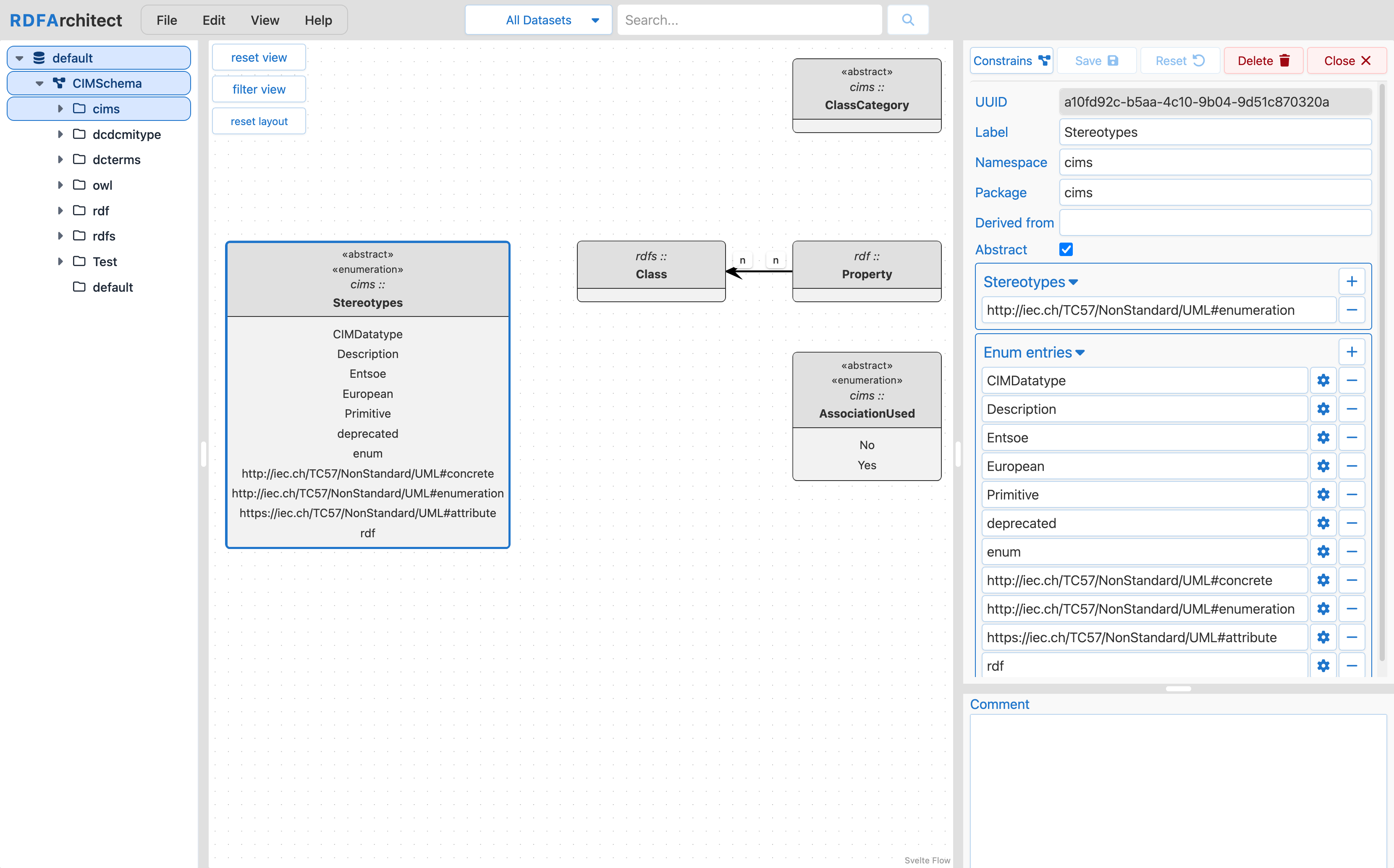
The main editor, reachable from the Open Editor button on the homepage or via the top navigation, is split into three panels:
- Left — navigation tree. The graphs inside the active workspace, and the packages inside each graph. Classes live under their packages and can be opened from here.
- Centre — diagram canvas. A UML-style class diagram of the currently selected package: classes with their attributes and associations, inheritance arrows, and links that leave the package. The diagram is rendered with SvelteFlow by default and supports pan, zoom, and auto-layout; a Mermaid rendering is also available.
- Right — class editor. When a class is selected, its full definition is available here: label, URI namespace, package, super class, stereotypes, comment, attributes, associations, enum entries, and class-level constraints (SHACL).
Across the top there is a menu bar (File, Edit, View, Help), a workspace tab bar for switching between open workspaces, a search bar for finding classes/attributes/packages, and indicators for read-only status and unsaved changes.
A colour legend and classic diagram conventions are used throughout: stereotypes like «enumeration» or «Primitive» appear above the class name, cardinalities are shown on association ends, and inheritance uses a hollow triangle.
Getting data into RDFArchitect
There are three ways content lands in the editor.
Import a schema (File → Import → Schema (RDFS))
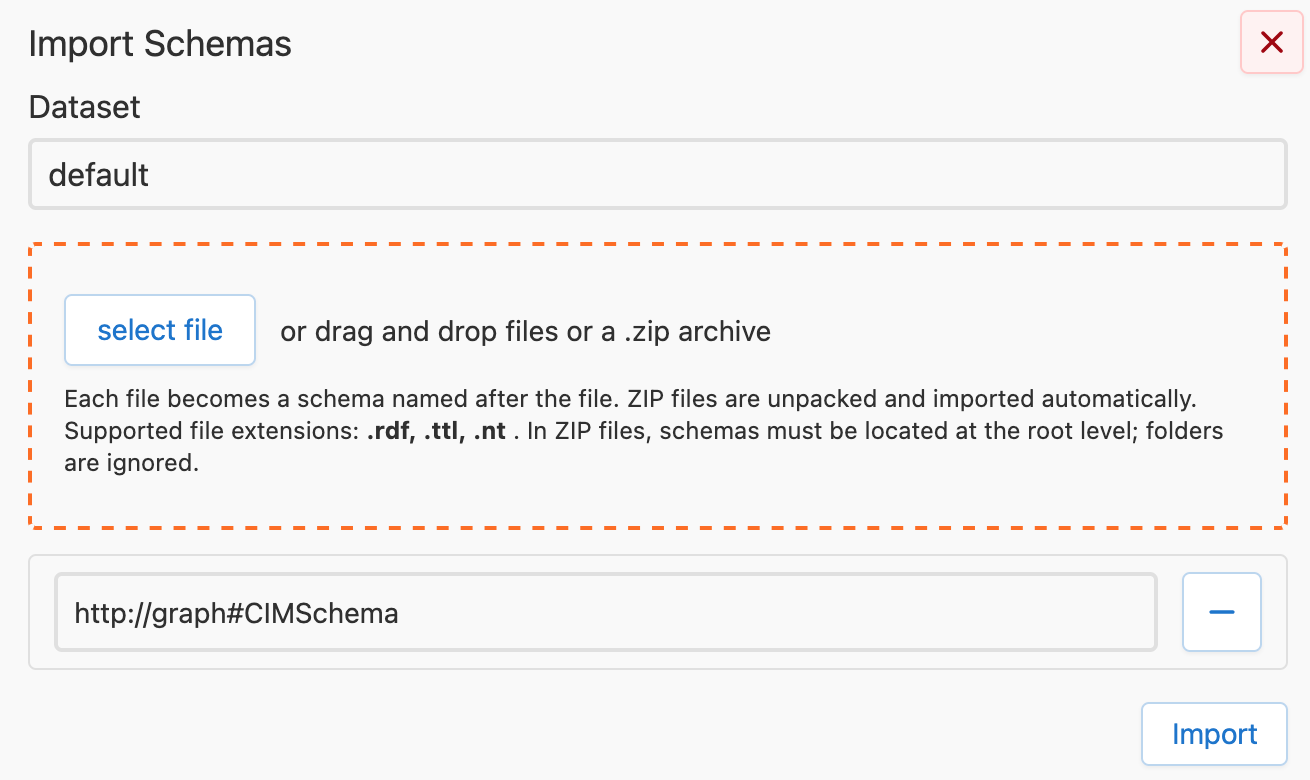
This is the standard entry point for CGMES profiles and ENTSO-E Network Code Profiles. Pick a workspace (existing or a new name), drop in an .rdf, .ttl, or .nt file, and the contents become a graph inside that workspace. The graph name defaults to a sanitised version of the filename but can be overridden. If the target workspace has been set to read-only, the import is blocked until editing is re-enabled.
Supported input formats are RDF/XML (.rdf), Turtle (.ttl), and N-Triples (.nt). CGMES releases are typically shipped as RDF/XML and can be imported directly.
Import a SHACL file (File → Import → Constraints (SHACL))
A separate import path for custom SHACL shapes. These are stored next to the schema graph and can later be viewed from the same UI as the generated SHACL (see SHACL).
Create an empty schema (Edit → New → Schema)
Starts a new, empty graph in the selected workspace. Useful when you want to build a small extension profile from scratch rather than import one.
Once a schema is imported, it becomes the active graph and the navigation tree on the left updates to show its packages.